
QEMU-KVM on Arch Linux: Running Tiny Core Linux in a Lightweight VM#
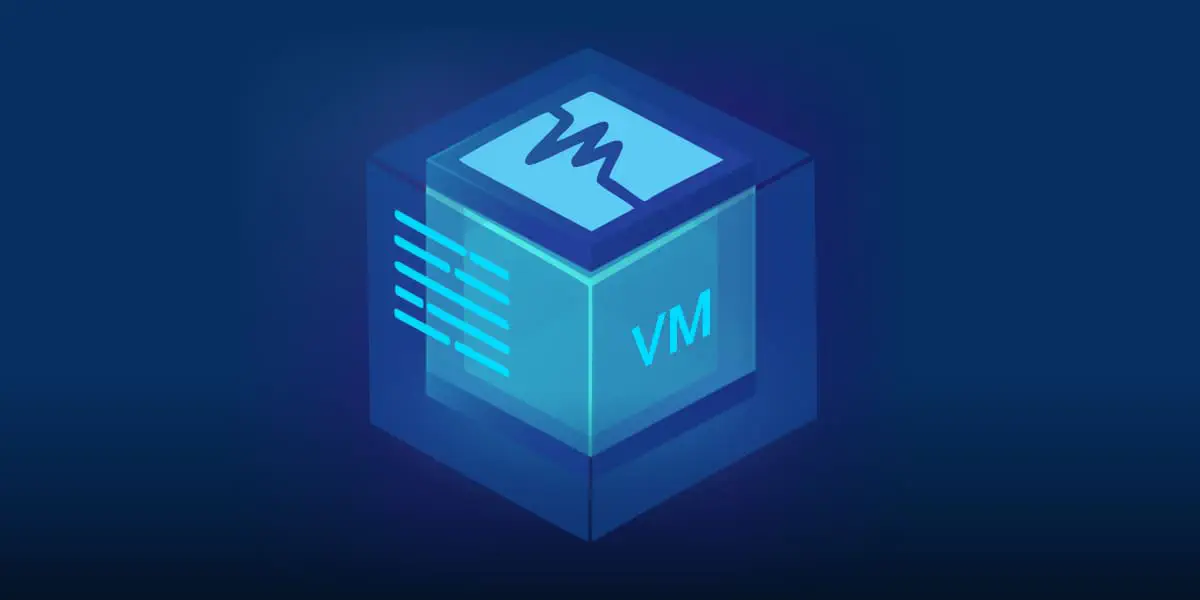
Virtualization is a powerful tool for developers, sysadmins, and tinkerers alike. On Linux, QEMU-KVM stands out as a robust, high-performance virtualization stack. In this blog, well walk through setting up QEMU-KVM on Arch Linux and using it to run Tiny Core Linuxa super-lightweight distro perfect for testing and experimentation.
What is QEMU-KVM#
QEMU (Quick Emulator) is a generic and open-source machine emulator. On its own, it can emulate various hardware systems. However, when paired with **KVM (Kernel-based Virtual Machine)**a Linux kernel module for virtualizationit can run virtual machines with near-native performance.
- QEMU provides device emulation and user-space management.
- KVM integrates with the Linux kernel and handles hardware-level virtualization.
Together, they effectively form a Type 1 hypervisor because the Linux kernel (with KVM) handles core virtualization tasks directly on hardware.
Step-by-Step: Installing QEMU-KVM on Arch Linux#
Step 1: Install Required Packages#
sudo pacman -Syu
sudo pacman -S qemu virt-manager virt-viewer dnsmasq vde2 bridge-utils openbsd-netcat libvirt edk2-ovmf
edk2-ovmf is for UEFI firmware support in VMs.
Step 2: Enable and Start libvirtd#
sudo systemctl enable --now libvirtd.service
Step 3: Add Your User to the libvirt Group#
sudo usermod -aG libvirt (whoami)
newgrp libvirt
Step 4: Verify KVM Support#
lsmod grep kvm
And check CPU virtualization support:
egrep -c (vmxsvm) /proc/cpuinfo
A value of 1 or more indicates virtualization support.
Example: Running Tiny Core Linux on QEMU-KVM#
Now that your system is ready, lets run Tiny Core Linux, a minimalist Linux distro thats only 16MB
Step 1: Download Tiny Core ISO#
wget http://tinycorelinux.net/14.x/x86/release/Core-current.iso
Or visit http://tinycorelinux.net for the latest release.
Step 2: Create a Virtual Disk (Optional)#
qemu-img create -f qcow2 tinycore.qcow2 512M
This creates a 512MB disk image. Optional for RAM-only usage.
Step 3: Launch the VM with KVM Acceleration#
qemu-system-x86_64 -enable-kvm -m 512 -cpu host -smp 1 -cdrom Core-current.iso -hda tinycore.qcow2 -boot d -net nic -net user -vga virtio -display sdl
Key Flags Explained:
-enable-kvm: Enables KVM hardware acceleration

-m 512: Allocates 512MB RAM

-cpu host: Uses the host CPU features

-cdrom: Points to the Tiny Core ISO

-hda: Uses a QCOW2 disk image

-boot d: Boots from CD first

-net user: Enables simple user-mode networking (e.g., for internet access)

-display sdl: Uses SDL window for graphics (you can replace with gtk or virt-manager)
Alternate: Boot Tiny Core in RAM Without Disk#
qemu-system-x86_64 -enable-kvm -m 256 -cdrom Core-current.iso -boot d -net nic -net user -vga std
Conclusion#
With QEMU-KVM, Arch Linux becomes a full-featured Type 1 hypervisor. By combining kernel-level virtualization (KVM) with the flexibility of QEMU, you get a fast, customizable virtualization platform. Running Tiny Core Linux showcases just how lightweight and efficient this setup can be.
Whether youre building VMs for testing, learning Linux internals, or experimenting with custom environments, QEMU-KVM on Arch is a powerful combination.
Happy virtualizing